Andriod Error Message - Message Not Downloaded
Sometimes users may encounter failed to download attachment from multimedia messages because of the corrupted cache barrier or damaged information of a MMS service. It is ane of the virtually irritating issues that users generally face while downloading multimedia messages on Android.
So, if y'all are in such a situation and then information technology doesn't hateful that you tin can't fix this error.
You lot tin fix "failed to download attachment from multimedia message" on Android by rebooting your device, clearing enshroud files for the MMS service, updating PRL & profile, resetting APN settings, and performing a factory reset on your telephone.
However, if yous don't want to use any complicated solution so you can become for the best Android Repair Tool.
Read farther to know more…
What Is MMS (Multimedia Messaging Service)?
MMS stands for Multimedia Messaging Service. Information technology'due south a feature that helps to transfer or motion multimedia documents beyond the network. On the other manus, it is the best mode to ship pictures or other media files through text messages.
Still, there are various messaging apps like WhatsApp, Facebook Messenger, Telegram, etc. Only still, people used to cull the MMS due to its all-time features.
But sometimes, it may happen that while using this service you can confront numerous irritating errors and issues. One such event is "failed to download attachment from multimedia message" on Android.
In the adjacent section, you are going to larn why won't MMS messages download on Android and how to fix this.
What Causes MMS Messages Won't Download On Android?
There could exist several reasons that can pb to won't download MMS letters on Android phones. Thus, beneath I take listed the common causes behind this issue.
- Due to the poor internet connection
- Cache data of an app & phone
- Lack of storage chapters
- Corrupted or outdated PRL & profile.
As you have learned the major factor, now you must be worried to know how to fix this issue, right?
If this is so, just scroll downwardly this page and get the possible fixes to get rid of MMS messages that won't download errors.
Recommended Way: Fix "Failed To Download Attachment From Multimedia Message" Using Software
Instead of trying different tricky methods, y'all tin go for the best & convenient Android Repair Tool.
This utility is particularly designed to repair several Android-related errors like app keeps crashing, black screen of death, screen flickering and other issues including multimedia message won't download.
The best feature about this tool is that- anyone tin can operate it even without having any technical skills.
And then, what are you waiting for? Only download & install this Android Repair Software on your device follow itsUser Guide.

Note: It is recommended to download and apply the software on your PC or laptop simply.
How To Fix Failed To Download Zipper From Multimedia Bulletin? [Manual Methods]
Check out the below-listed techniques that will help you to resolve failed to download attachment from multimedia message Galaxy S10. Let'southward try them.
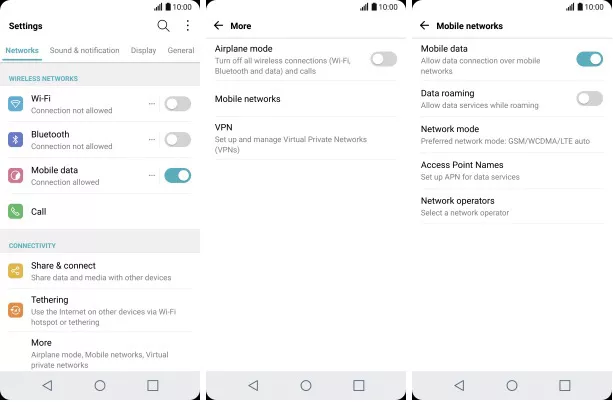
Method #ane: Switch To The Mobile Information
Sometimes, due to the poor network connection, you lot won't able to download your media files transport/receive by others.
Likewise, if y'all're continued to the Wifi, & a "Wifi calling" option isn't enabled/turned ON in your telephone, so your multimedia message will not download.
In such a situation, you have to enable the mobile data and set the unable to download MMS trouble on your Android. One time finished, endeavor to download your MMS message over again.
Method #two: Rebooting Your Android To Fix MMS Won't Download Android
Rebooting the phone is one of the primary resorts that users are frequently doing when they come across any errors or bugs on their device. Besides, it is a beneficial trick that resolves minor every bit well every bit major glitches in smartphones.
So, hither I would also like to suggest you to restart your smartphone by following these steps:
Step 1: Just press & hold a Power push till a power menu seems,
Stride 2: Cull the Restart or Reboot option. Wait until your phone restart.
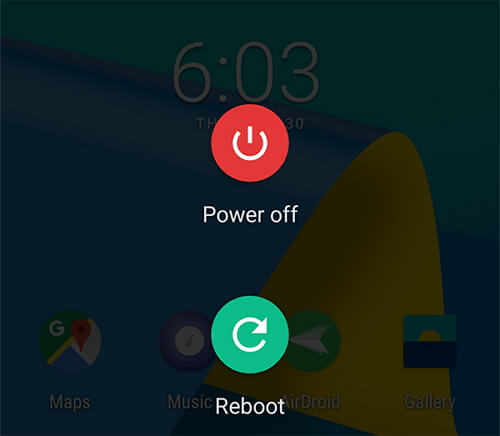
Now, check whether MMS messages not downloading Android issue is solved or not. If not, try further solutions.
Method #3: Clear Cache Files For The MMS Service
Clearing enshroud files of a messaging app is some other useful approach that you can apply to troubleshoot this error.
Follow the below steps to clear enshroud & data of a messaging application that you are using for MMS service on Android.
- From the "Settings", you have to go to the "Apps".
- Choose MMS Service application
- Click on the "Clear Data/Clear Enshroud" option.
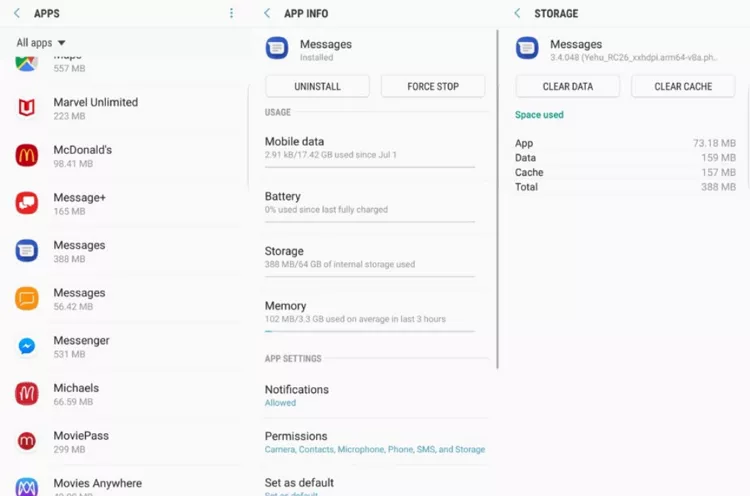
Subsequently finishing these steps, bank check if you can download your MMS message on your mobile successfully.
Method #iv: Shifting The Network Mode
To fix Samsung S21 failed to download attachment from multimedia letters, yous need to disable the Wifi (if enabled) & plow ON your mobile data.
Here is how you can practise and so:
Step 1: First, switch a notification panel downwardly from a top of your telephone's display.
Pace 2: Turn off "Wi-Fi" option & allow the "Mobile Data" selection in that location.
Step 3: Then, go to this "MMS" & appraise if an attachment error is solved.
Step 4: Otherwise, get to the "Settings Menu" on your device.
Step 5: Tap on the "Connections" >> "More than".
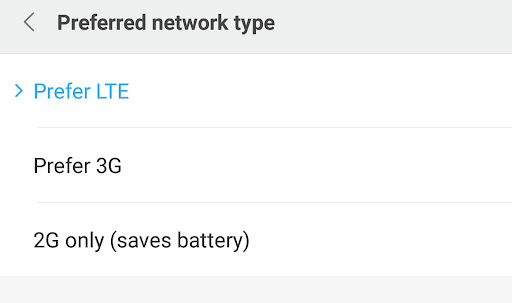
Footstep 6: After this click on the "Mobile Networks" >> find the option "Preferred A Network Mode".
Step 7: Now choose system modes similar "LTE." Once washed, return to the MMS & check if it works.
Method #5: Remove Old Messages
When message limit exceeds in the term of storage on the messaging app, and then you cannot download the MMS. In such a instance, simply clear out the old messages to deal with this irritating problem.
- At beginning, open the "Messages" application.
- Then, click on a Menu push >> select the "Delete Threads" option.
- Here, yous have to bank check all boxes in the front end of messages that yous need >> tap on the "Delete".
Method #6: Disable An Auto-Retrieve Feature
The motorcar-retrieve feature helps to automatically download the multimedia pictures and other documents simply past clicking on it. Nevertheless, this characteristic throws countless mistake letters.
Therefore, it is improve to disable this feature, follow these steps:
Stride 1: On your Android, you need to launch a "Messaging App".
Step 2: Next, click on the "Menu" >> tap "Settings."
Step 3: At present, from an appearing list, you have to search for an choice "Automobile-Download" >> disable this feature.
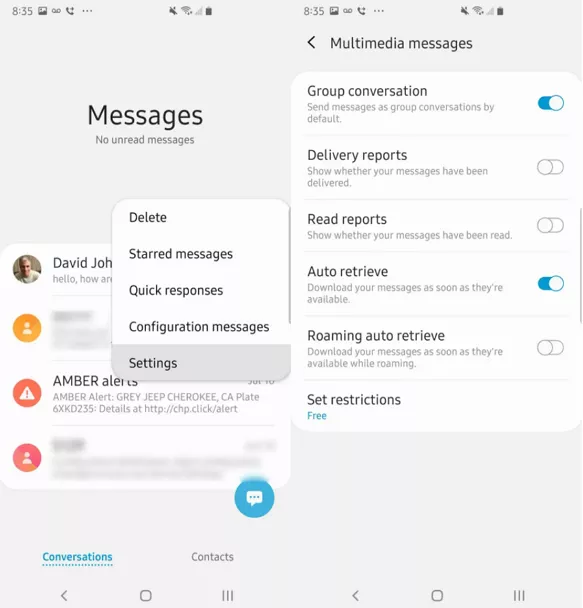
Step 4: Reboot your mobile & outset using the MMS services.
If this trick won't help you, and then try the next 1.
Method #7: Enable The Download Booster (For Samsung Users)
If you are a Samsung phone user and encountering "MMS messages not downloading Milky way S20", and so you can apply the Download Booster.
Though, it'due south an exceptional characteristic on the Samsung devices using which the large size files can download in a fast fashion. And it works for mobile information and also every bit the Wifi.
For enabling Download Booster feature on your Samsung mobile, go through the beneath steps:
- On your Samsung phone's Home screen, tap on "Settings"
- In the second step, you lot have to choose "More Connection & Settings" option.
- Hither, choose the "Download Booster" & enable information technology.
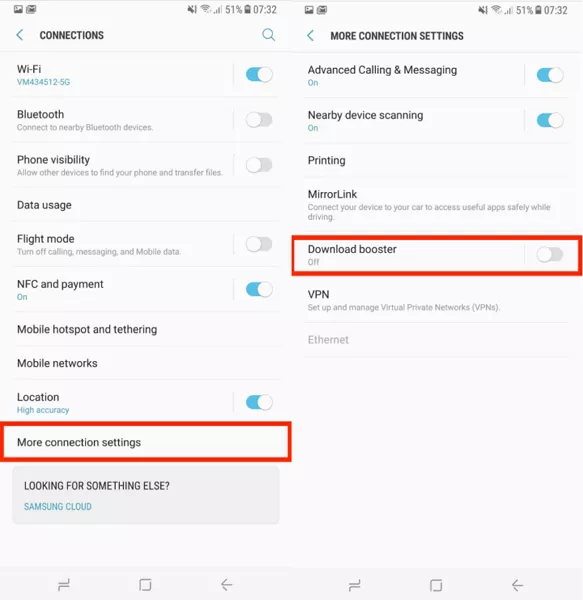
Now, reboot your phone and come across if the MMS can't download consequence is stock-still.
Method #8: Reset the APN Settings to Repair Failed To Download Attachment From Multimedia Message
In guild to troubleshoot the consequence, you can too reset the APN (Access Betoken Names) settings. Here is how y'all tin can easily exercise so:
Step 1: Tap on "Settings" app >> then go to "More".
Step 2: Adjacent, click on a "Mobile Networks" option >> choose "Access Indicate Names".
Step 3: Click on 3 vertical dots >> select the "Reset to A Default".
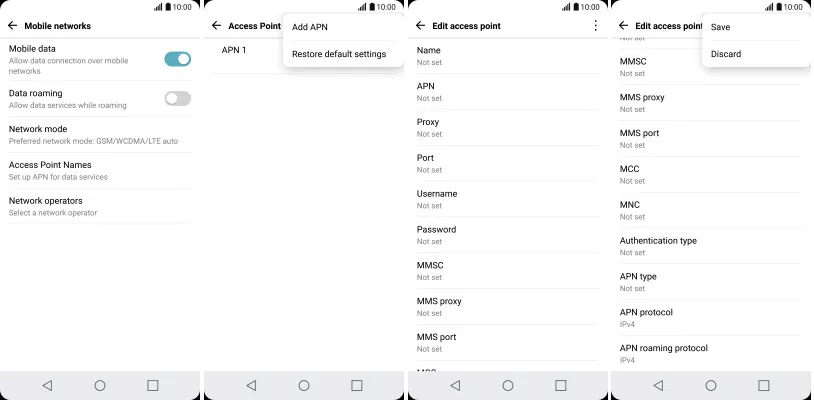
Following the to a higher place steps will help you for resetting/restoring the APN settings & set it to default.
Method #nine: Irresolute A Messaging App
Later on applying several ways, if you tin't download MMS messages on Android, then it means there is an consequence with your messaging app. In such a situation, you can get for other messaging apps such as Textra, hangouts, etc.
Just choose 1 of the messaging apps that you want to apply and gear up it as a default message application. Now see if an zipper is downloading.
Method #10: Update Contour & PRL
Almost of the time, it happens that because of the invalid, corrupted, or outdated PRL, an MMS service get stops.
At the time, updating the PRL & Profile tin help you to resolve won't download multimedia message attachment effect effectively.
Follow the beneath easy steps very advisedly and update the PRL.
- At first, tap on "Settings app".
- And then, scroll down & tap on the pick "About Phone".
- Here you tin discover a list, tap "Organisation" >> "Update Profile" option.
- Click on update profile >> "Update PRL."
- Afterward finishing these steps, "Restart" your device & check whether MMS services is working fine.
Method #eleven: Practise Mill Reset
This is the terminal solution that you tin can try in case if none of the solutions assist you to bargain with can't download attachment mistake.
Performing a factory reset deletes all the personal information and settings from the device and get in new.
In order to do so, simply follow the footstep-past-footstep mentioned below:
Footstep i: From the "Settings" app >> go to a "System".
Pace two: In the 2d step, tap on the "Avant-garde" >> "Reset options".
Footstep 3: Now click on an option "Erase All the Data" >> "Reset Phone".

Please Annotation: Before doing a factory reset on your smartphone, continue a backup of your essential files (photos, videos, chats, music, etc.).
FAQ (Ofttimes Asked Questions)
How Practise I Enable MMS Messaging On My Samsung?
If you desire to enable the MMS messaging on your Samsung device so click on 'Settings' icon and choose the 'Data usage' option. After this, merely slide a push towards a right side to an 'ON' position. Doing and so volition help yous to turn on a information connexion & enable the MMS messaging.
Why Won't My MMS Messages Download On My Samsung?
It is possible that you won't able to download your MMS messages on Samsung due to poor network connectivity or cache data of the messaging app.
How Do I Stop Failed To Download Zipper From Multimedia Message?
You can cease failed to download attachment from multimedia message issue by trying the below tricks:
- i. Restart your Android phone
- 2. Reset APN settings
- 3. Delete the old messages
- four. Change the messaging app
- 5. Exercise factory reset
How Can I Recollect A Multimedia Message?
In order to retrieve information from Android device including a multimedia message, you can apply the expert Android Data Recovery tool.
Time To Wrap Up
So, this is all about how to fix failed to download zipper from multimedia bulletin Android.
In the above section of this post, I have stated 13 quick fixes. Though, y'all can try any of the solutions to get rid of MMS won't download automatically issue.
But if you want an instant & hassle-complimentary way to fix information technology and then you can go for the recommended solution- Android Repair Tool.
Hopefully, this article will helpful for you. Skilful luck…!

James Leak is a technology expert and lives in New York. Previously, he was working on Symbian Os and was trying to solve many issues related to it. From babyhood, he was very much interested in technology field and loves to write blogs related to Android and other Bone. And then he maintained that and currently, James is working for androiddata-recovery.com where he contribute several articles about errors/issues or data loss state of affairs related to Android. He keeps daily updates on news or rumors or what is happening in this new engineering earth. Apart from blogging, he loves to travel, play games and reading books.
DOWNLOAD HERE
Posted by: alvarezexubse.blogspot.com





0 Komentar
Post a Comment